
How to Translate a PDF: A Simple Step-by-Step Guide
Learn how to translate a PDF step by step, including scanned PDFs, OCR, formatting, accuracy checks, and how to translate PDFs on your phone.
Need to read a report, contract, manual, research paper, or other document in another language? You don't have to copy and paste every paragraph into a translator. With the right PDF translation tool, you can translate an entire document in just a few steps.
In this guide, we'll explain how to translate a PDF, how scanned PDFs are different from regular PDFs, what OCR means, how to preserve formatting, and what to check before using your translated document.
How to Translate a PDF
The easiest way to translate a PDF is to use a document translator that can process the entire file instead of translating each paragraph individually.
Here's the basic process:
- Open a PDF translation tool.
- Choose the language of the original document.
- Select the language you want to translate it into.
- Upload your PDF.
- Start the translation.
- Review the translated document for accuracy and formatting.
Before you begin, however, it's worth checking what kind of PDF you have. A regular text-based PDF and a scanned PDF may require slightly different translation workflows.
Step 1: Check Whether Your PDF Is Text-Based or Scanned
Open your PDF and try to select a sentence with your cursor or finger.
If you can highlight individual words, the document probably contains selectable text. This means a PDF translator can usually read the text directly.
If you can't select the words and each page behaves like an image, you're probably working with a scanned PDF.
Scanned PDFs need an additional technology called OCR before the text can be properly processed.
What Is OCR?
OCR stands for Optical Character Recognition. It identifies text inside images or scanned pages and converts it into machine-readable text.
The process generally looks like this:
Scanned page → OCR → Recognized text → Translation
OCR quality matters because any recognition mistake can also affect the translation. Blurry scans, handwriting, unusual fonts, low contrast, stamps, or damaged pages can make text recognition more difficult.
Step 2: Choose Your Languages
Select the language used in the original PDF and the language you want the document translated into.
For example, if your document is written in English and you need a Spanish version, choose English as the source language and Spanish as the target language.
Automatic language detection can make this process faster, but manually selecting the source language can sometimes be useful for documents containing abbreviations, technical terminology, names, or multiple languages.
Step 3: Upload and Translate the PDF
Once your languages are selected, upload the document to your PDF translator and start the translation.
Using a tool designed specifically for documents is generally more convenient than copying text page by page, especially when working with multi-page reports, manuals, academic papers, business documents, or other long files.
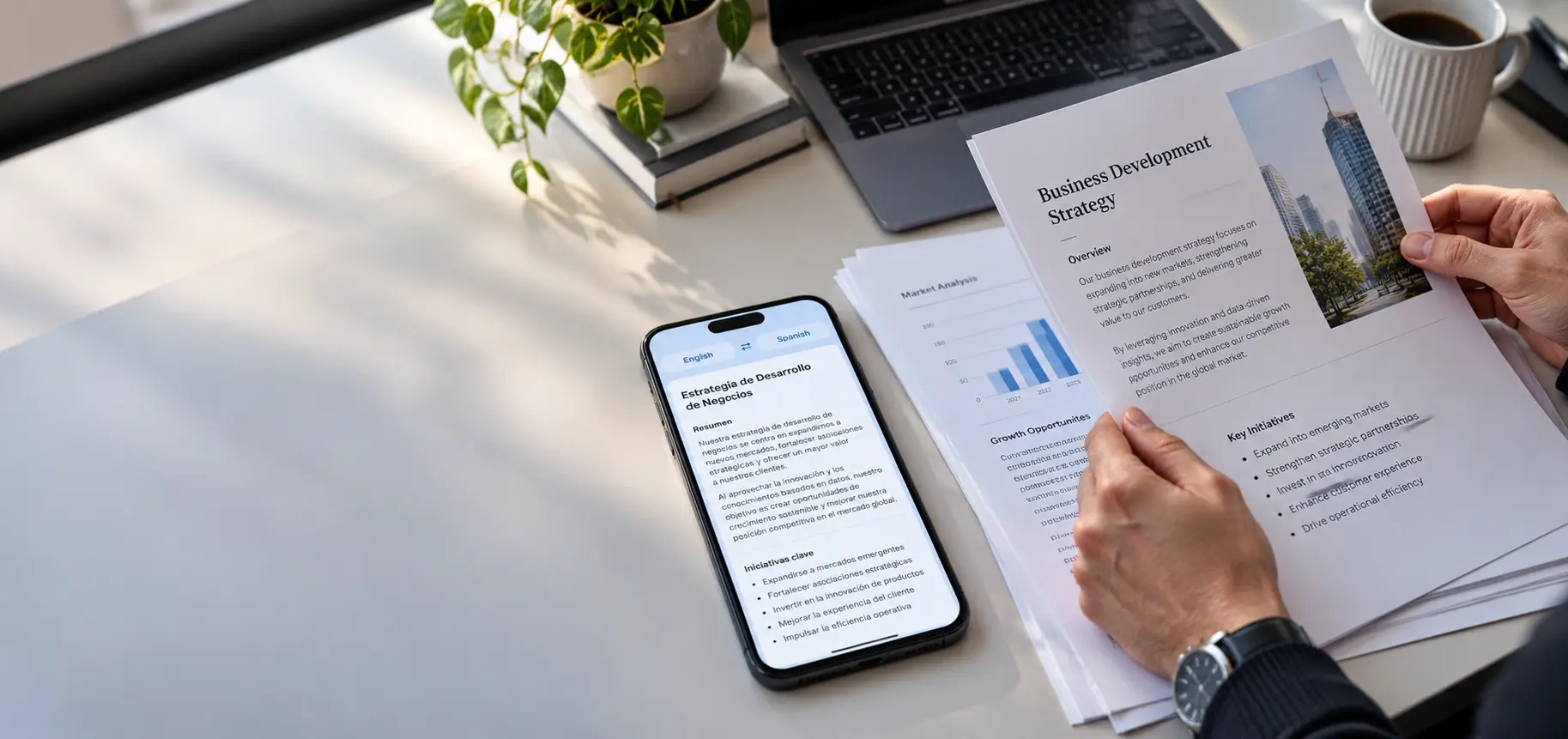
With Translate AI, you can open the PDF translation feature, choose your languages, select your document, and translate the PDF directly from your phone.
Step 4: Review the Translation
Even when a PDF is translated automatically, it's a good idea to review the result before using or sharing it.
Pay particular attention to:
- Names and proper nouns
- Dates and numbers
- Prices and currencies
- Measurements
- Addresses
- Technical terminology
- Tables and charts
- Headings and footnotes
For everyday reading, AI translation can be a quick way to understand a document in another language. However, legal documents, medical records, immigration paperwork, certificates, contracts, and other high-stakes documents may require professional review or an officially certified translation.
How to Translate a Scanned PDF
A scanned PDF is slightly different because the words on the page may exist only as part of an image.
In that case, the translation process usually includes an additional OCR step:
- Upload the scanned PDF.
- Use OCR to recognize the text.
- Check that the text has been detected correctly.
- Select your target language.
- Translate the recognized text.
- Review the final document.
If the original scan is difficult to read, try using a clearer version of the document. Small text, faded pages, handwriting, unusual characters, and complex tables are common areas where OCR can make mistakes.
How to Translate a PDF Without Losing Formatting
One of the biggest challenges when translating a PDF is keeping the original document readable.
PDFs can contain more than simple paragraphs. A document may include multiple columns, tables, images, captions, headers, footnotes, forms, and text positioned in specific areas of the page.
Translation can also change the length of a sentence. A short sentence in English may take more space when translated into another language, or vice versa. This can affect line breaks, tables, spacing, and page layouts.
If preserving the layout is important, use a translation tool designed to work with complete documents rather than extracting the text manually.
After translation, check the document page by page to make sure headings, paragraphs, tables, and other important elements are still easy to read.
Can You Translate a PDF on Your Phone?
Yes. You don't necessarily need a desktop computer to translate a PDF.
A mobile PDF translator can be especially useful when a document arrives through email, messaging apps, cloud storage, or a download while you're away from your computer.
The process is essentially the same:
- Select the original and target languages.
- Choose the PDF from your device.
- Start the translation.
- Review the translated content.
This can be useful when traveling, studying, working with international documents, or simply trying to understand a file that was sent to you in another language.
Common PDF Translation Problems
The PDF Has No Selectable Text
The document is probably scanned. You'll need a translation workflow that supports OCR so the text inside the scanned pages can be recognized before translation.
The Formatting Changes After Translation
Different languages require different amounts of space. Tables, columns, headings, and page breaks may therefore change after translation. Always review documents where layout is important.
Some Words Are Translated Incorrectly
Names, industry terminology, abbreviations, and words with multiple meanings can be difficult to translate without enough context. Check important terminology against the original document.
The Scanned Text Is Recognized Incorrectly
This is usually an OCR issue rather than a translation issue. A clearer scan with better lighting, contrast, and resolution can improve text recognition.
The PDF Is Password-Protected
Some protected PDFs restrict access to their content. You may need the correct password or permission from the document owner before the file can be processed by a translation tool.
Is It Safe to Translate a PDF Online?
It depends on the service you use and the type of document you're translating.
Before uploading confidential or sensitive files, review the service's privacy policy, security information, and data-retention practices. You should also make sure uploading the document is permitted by your company, school, organization, or other relevant policy.
This is particularly important for documents containing financial information, personal data, contracts, internal company information, or other confidential material.
When Should You Use a Professional Translator?
AI-powered PDF translation is useful when you need to quickly understand a document, communicate across languages, or work with everyday content.
However, some documents require a higher level of verification.
Consider professional or certified translation for documents such as:
- Legal contracts
- Immigration documents
- Birth or marriage certificates
- Medical records
- Court documents
- Official academic records
- Other documents requiring certified translation
AI translation can still help you understand these documents, but it should not automatically be treated as an official or certified translation.
Frequently Asked Questions About PDF Translation
Can a PDF be translated automatically?
Yes. Many PDF translation tools can automatically process text-based documents. If the PDF contains scanned pages instead of selectable text, OCR may be required before translation.
Can I translate an entire PDF at once?
Yes. A document translation tool can process an entire PDF, which is usually much faster than copying and translating individual paragraphs.
Can I translate a scanned PDF?
Yes, provided the workflow supports OCR. OCR recognizes the text inside scanned pages so it can then be translated into another language.
Why does PDF formatting change after translation?
Translated sentences can be longer or shorter than the original text. PDFs may also contain tables, columns, images, and precisely positioned text, which can cause the layout to shift during translation.
Can I translate a PDF on an iPhone or Android phone?
Yes. Mobile translation apps with document translation support can let you select a PDF from your phone and translate its contents without using a desktop computer.
Can AI translate a PDF accurately?
AI translation can provide useful and natural translations for many everyday documents, but accuracy varies depending on the language pair, document quality, context, terminology, and complexity of the content. Important documents should always be reviewed before they are relied upon.
Translate PDFs Without Copying Every Paragraph
Translating a PDF doesn't have to mean copying and pasting every page into a translator.
Start by checking whether your document contains selectable text or scanned pages. Choose the correct language pair, translate the complete document, and review the result carefully. If the PDF is scanned, OCR becomes an important part of the process; if the document has a complex layout, formatting deserves extra attention.
With Translate AI, you can translate PDF documents directly from your phone alongside text, voice, camera, and other translation tools.
Ready to translate your document? Try PDF Translation with Translate AI.
- how to translate a PDF
- translate PDF
- PDF translator
- translate a PDF
- scanned PDF translation
- translate PDF on phone
- translate document